
Ethernet for IPTV: Why Wired Beats WiFi + Setup Guide
August 28, 2026 · 8 min read
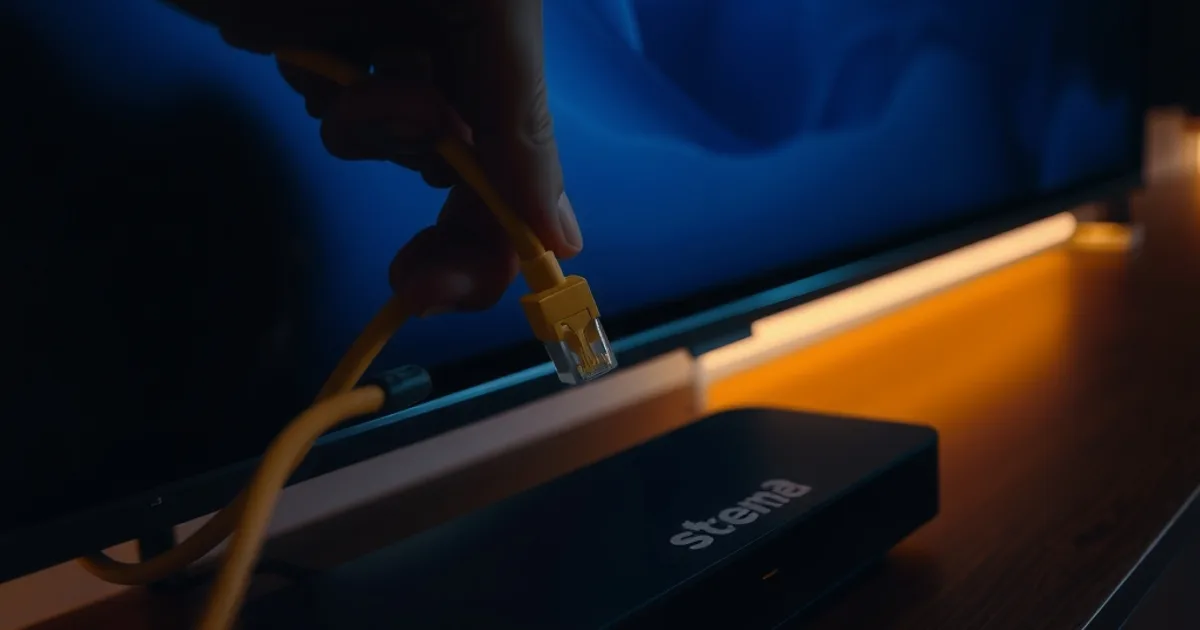
Most buffering advice stops at 'check your internet speed.' But speed is only half the story — the physical connection between your streaming device and your router matters just as much, and it's the piece almost every guide skips. Plugging in a $10-20 Ethernet cable is often the single biggest reliability upgrade you can make to an IPTV setup, ahead of upgrading your internet plan or buying a new box.
Here's the 2026 reality: IPTV services are competing on reliability now, not on how many channels are in the package — everyone's list looks similar, so the experience is what separates a good provider from a frustrating one. And the thing quietly wrecking that experience in most households is Wi-Fi congestion, not the service itself. If your living room TV buffers constantly while a bedroom stream on the same subscription runs perfectly, that's not a signal problem with your provider — that's your router being asked to serve too many devices over a shared, contested radio channel. A wired connection removes that contest entirely.
This guide covers the physics behind why wired wins, exactly what hardware to buy, how to run cable through a house without hiring an electrician, device-specific setup steps, and how to tell when Wi-Fi is genuinely fine and you don't need to bother.
Why Wired Beats Wireless: The Physics
IPTV streams aren't like downloading a file, where a slow connection just means a longer wait. They're a continuous flow of small packets that need to arrive in order and on time, decoded into video frames as they land. What breaks that flow isn't just low speed — it's jitter, the variation in how long each packet takes to arrive. A connection that averages fast but swings between fast and slow will buffer more than a connection that's consistently modest but stable.
Wi-Fi is inherently jittery. It's a shared, half-duplex radio medium: every device on the same band has to take turns transmitting, and a microwave, a neighbor's router, a Bluetooth speaker, or a thick wall can all cause a packet to arrive late or need retransmission. Ethernet, by contrast, gives each device its own dedicated electrical path to the router with no contention and no retransmission from interference. The cable either carries the signal or it's physically disconnected — there's no in-between degraded state the way there is with a weak Wi-Fi signal.
Latency matters too. A wired connection typically adds under 1ms of local network latency; Wi-Fi, especially on a busy 2.4GHz band, can add anywhere from a few milliseconds to 50ms+ depending on channel congestion. For live sports or anything with fast motion, that latency variance is what shows up as the picture freezing for a second, then catching up in a blur.
Not sure if your buffering is a Wi-Fi problem or something else? Ask us directly.
Ethernet vs. WiFi for IPTV: Head-to-Head
The clearest way to see the difference is a simple test: run the exact same stream on the exact same device, once over Wi-Fi and once over Ethernet, at the same time of day. Most people who do this are surprised by how much smoother the wired version looks, even when their Wi-Fi 'speed test' number looked fine. That's the core trap — a speed test measures peak throughput over a few seconds, not the sustained stability an IPTV stream actually needs.
In practice, users who switch from Wi-Fi to Ethernet on a congested home network commonly report cutting buffering-related interruptions by somewhere around 80%, without changing anything else — same subscription, same router, same internet plan. The improvement isn't because Ethernet is 'faster' in the way marketing implies; it's because it removes the variability that causes buffering in the first place.
The gap is largest in exactly the household situation described above: multiple devices streaming at once. One device on Wi-Fi might run fine in isolation, but add three more phones, a laptop backup, and a smart speaker to the same 2.4GHz band, and the IPTV stream starts competing for airtime it doesn't get priority for. Move that same stream to Ethernet and it stops competing altogether — it has its own lane.
What Hardware You Need
You don't need exotic gear. The two cable categories that matter for home use are Cat5e and Cat6. Cat5e supports Gigabit speeds up to about 100 meters (roughly 328 feet) and is more than enough bandwidth for any IPTV stream, including 4K. Cat6 supports the same Gigabit speed over longer effective distances with better shielding against interference, and can hit 10-Gigabit speeds over shorter runs — overkill for streaming alone, but worth it if you're also using the same line for gaming or file transfers. Cat6a adds even more shielding for runs near electrical wiring or in a garage/basement install. For a straightforward run to a TV, Cat5e or Cat6 is the right call; don't pay extra for Cat6a or Cat7 unless you have a specific reason.
A single flat or round cable and, if needed, a USB-to-Ethernet adapter for devices without a built-in port is typically the entire hardware list, and it's often the cheapest fix available — frequently under $20 total. If you're running to a device that also needs 4K bandwidth headroom, our breakdown on /blog/4k-iptv-worth-it-screen-size-bandwidth-test walks through exactly how much throughput 4K streaming actually consumes, which helps you judge whether a basic cable is genuinely enough (it almost always is).
If you need to feed more than one device from a single wall jack or router port, don't use a passive 'Ethernet splitter' — most cheap ones only split the cable pairs and can leave you with a half-duplex, unreliable connection, or simply not work at all on modern Gigabit hardware. Use a small unmanaged network switch instead (4 or 5 ports is plenty for a home entertainment setup); it costs a little more but gives every connected device its own full-speed, full-duplex link.
How to Run Ethernet: Cable Management & Room Routing
Most rooms don't need drilling or wall fishing. Adhesive or nail-in cable raceways along the baseboard are the fastest way to run a cable from a router in one room to a TV in another without it looking like a hazard — they're inexpensive, paintable to match trim, and take under an hour per run. Flat Ethernet cable is thin enough to slide under a carpet edge or door threshold if you need to cross a doorway without a raceway.
For longer distances, Ethernet is rated to run up to 100 meters (about 328 feet) before signal quality degrades, but for a clean, low-risk home install, keep runs under about 250 feet where possible, and avoid running cable parallel to power lines for long stretches — cross power cables at a 90-degree angle if you have to, rather than running alongside them, to minimize electrical interference.
If running a physical cable between floors or across the house isn't practical, MoCA adapters (which use existing coax TV wiring) or powerline adapters (which use electrical wiring) are reasonable fallbacks. They're not quite as consistent as a direct Ethernet run, but both are meaningfully more stable than Wi-Fi for a stationary device like a TV, and installation is plug-and-play with no cable routing at all.
Setup for Every Device: Firestick, Roku, Apple TV, Smart TV, Android Box
Fire TV Stick and Fire TV Stick 4K have no built-in Ethernet port, so you'll need Amazon's official Ethernet adapter (or a compatible USB-C/micro-USB to Ethernet adapter) that plugs into the device's power port and passes through power separately. Once connected, the Stick should default to the wired connection automatically; if not, go to Settings > Network and select the wired option.
Roku's approach varies by model — Roku Ultra and most Roku TVs have a built-in Ethernet port, while Roku Streaming Stick models do not and need a USB adapter similar to the Fire TV Stick. Apple TV 4K has a built-in Gigabit Ethernet port on every model, making it one of the easiest devices to wire up: just plug in and it switches over automatically. Most modern smart TVs (Samsung, LG, Sony, Hisense) also have a built-in port on the back or side panel, typically right next to the HDMI inputs. Android TV boxes almost universally include Ethernet since they're built for exactly this kind of always-on media setup.
Whichever device you're on, once it's wired, it's worth revisiting your app choice too — some IPTV apps handle a stable wired connection and adaptive bitrate better than others. Our comparison at /blog/boss-iptv-best-apps covers which apps make the best use of a reliable connection across each platform, and if you're wiring up more than one TV in the house, /blog/boss-iptv-multi-screen-devices covers how to structure a multi-device household setup so every screen gets a consistent experience.
When Ethernet Is Overkill
Wired isn't mandatory for everyone. If you have a single streaming device, it sits within a room or two of the router with no major walls in between, and nothing else in the house is heavily using the network at the same time, Wi-Fi can deliver a perfectly stable stream — especially on the 5GHz or 6GHz band rather than the more congested 2.4GHz.
Newer Wi-Fi 6E and Wi-Fi 7 routers, and well-configured mesh systems with a wired backhaul between nodes, close most of the gap with Ethernet for a single device. If you've already tested your stream on 5GHz/6GHz, sit close to the access point, and it still buffers, the problem probably isn't the wireless standard — it's more likely something on the router side worth fixing directly, which is covered in /blog/iptv-router-network-optimization-guide.
The honest rule of thumb: the more devices sharing your network at once, the more Ethernet pays for itself. A single quiet device on modern Wi-Fi can be fine. A household running four streams, a video call, and a game console simultaneously is exactly the scenario wired connections were built to solve.
Troubleshooting: Speed Tests, Connection Drops, Adapter Issues
Run a wired speed test directly from the device (or from a laptop plugged into the same cable run) using a site like fast.com or speedtest.net. If wired speeds are dramatically lower than what your internet plan promises, the issue is upstream — check the cable itself first (a damaged or bent cable is a common, easy-to-miss cause), then the port on your router or switch, then the cable category (an old Cat5, not Cat5e, cable can bottleneck a Gigabit connection).
If you get good speed test numbers but still see occasional freezing, the culprit is often jitter or packet loss rather than raw throughput — the same underlying problem Wi-Fi has, just at a smaller scale. A cheap USB-to-Ethernet adapter is a common hidden cause: many budget adapters are only rated for 100Mbps (Fast Ethernet), not Gigabit, and some have unstable drivers that cause the connection to drop and reconnect intermittently. If your adapter is more than a couple of years old or was the cheapest option available, that's worth ruling out first.
If wired performance is inconsistent at certain times of day regardless of device or cable, the problem may not be your home network at all — it could be your ISP throttling streaming traffic during peak hours. /blog/iptv-isp-throttling-detect-fix walks through how to tell the difference between a local network issue (which Ethernet fixes) and ISP-level throttling (which it doesn't).
Once your connection is stable, see which plan fits how you actually watch.
Bonus: Network Prioritization — QoS & IGMP Snooping for Multi-Screen
If you're running multiple IPTV streams across a household — several TVs plus phones, laptops, and consoles all online at once — Ethernet solves the wireless contention problem, but your router can still bottleneck traffic if it isn't prioritizing correctly. Two settings are worth checking even after you've gone wired.
Quality of Service (QoS) lets your router prioritize streaming traffic over background traffic like large downloads or automatic backups, so a big file transfer on one device doesn't starve a live stream on another. IGMP Snooping is specifically relevant if any part of your setup uses multicast delivery — it prevents your router from flooding every device on the network with streaming traffic that was only meant for one, which matters a lot as you add more screens.
Both settings live in your router's admin panel, usually under an 'Advanced' or 'QoS' menu, and both are commonly disabled by default on consumer routers. Combined with the wired setup from this guide, they're the last piece for a household running several screens at once. For a full walkthrough of these settings and other router-level fixes, see /blog/iptv-router-network-optimization-guide.
Frequently asked questions
Do I need a special router for wired IPTV?
No. Any router with a free LAN Ethernet port works — the improvement comes from the cable itself removing Wi-Fi interference, not from special router features. If you need more ports than your router has, add an inexpensive unmanaged network switch.
What's the maximum Ethernet cable length before quality drops?
Standard Ethernet is rated for up to 100 meters (about 328 feet) before signal degradation becomes a concern. For a clean home install, keeping runs under roughly 250 feet with good-quality Cat5e or Cat6 cable gives you a comfortable margin.
Can I use powerline adapters instead of running a cable?
Yes, as a fallback. Powerline and MoCA adapters use your home's existing electrical or coax wiring instead of a new cable run, and both are more stable than Wi-Fi for a stationary device, though a direct Ethernet cable is still the more consistent option when the run is physically practical.
Does Ethernet specifically fix 4K IPTV buffering?
It helps significantly, because 4K streams are more sensitive to the jitter and packet loss that Wi-Fi introduces. See /blog/4k-iptv-worth-it-screen-size-bandwidth-test for how much sustained bandwidth 4K actually needs and why stability matters more than peak speed.
Is Cat6 worth it over Cat5e for IPTV specifically?
For streaming alone, Cat5e is enough — it supports Gigabit speeds, far beyond what any IPTV stream requires. Cat6 is worth the small extra cost mainly for better shielding on longer runs or runs near electrical wiring, not for raw speed.
My Firestick has no Ethernet port — what do I do?
Use an official or reputable USB-to-Ethernet adapter that connects through the Fire TV Stick's power port. Avoid the cheapest unbranded adapters, since many are capped at 100Mbps or have unstable drivers that cause intermittent drops.
Read next: the pricing page or the FAQ.