
Boss IPTV Buffering During Sports? 6 Fixes for Peak-Time Streaming 2026
September 2, 2026 · 8 min read
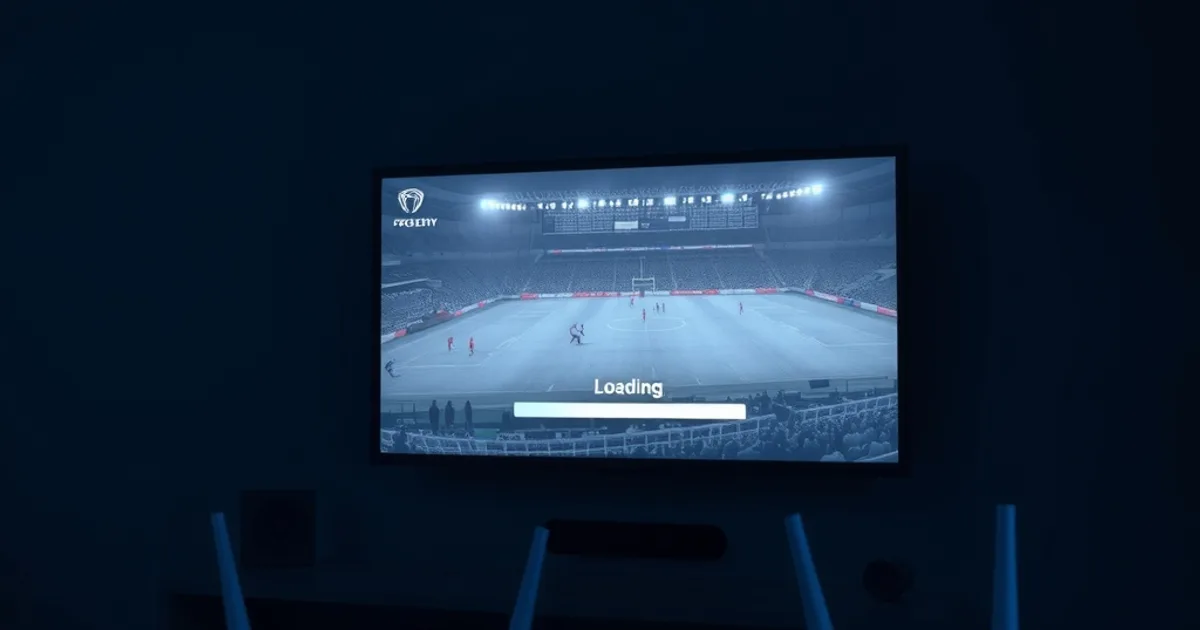
If you search "Boss IPTV buffering" right after a match kicks off, you're not imagining a pattern. Look through user reviews and a specific complaint keeps resurfacing: the stream holds up fine during a quiet Tuesday evening, then falls apart the moment a major game goes live — pixelation, the spinning wheel, audio drifting out of sync with video. Reviewers describe it bluntly as a service that "crashes during every single big sporting event," and with the football calendar now in full swing for the new season and marquee European fixtures returning to primetime slots, that complaint is landing at exactly the wrong moment for anyone trying to watch live.
Here's what most buffering guides get wrong: they treat every IPTV service the same and hand you a generic "restart your router" checklist. That's not enough when the problem is peak-demand load on shared infrastructure, not a random glitch. This guide is built specifically around how Boss IPTV behaves under pressure — how to tell in three minutes whether the fault sits on your end or theirs, and six concrete fixes ranked by how much they actually move the needle, from a five-minute cable swap to knowing when to open a support ticket instead of tinkering further.
None of this requires new hardware spending upfront. Start with the free diagnostic, work through the fixes in order, and you'll know within one match whether you've solved it or whether it's time to talk to support or consider a backup option.
Why Boss IPTV Buffers During Peak Sports Events (The Infrastructure Reality)
IPTV is not broadcast television. Every subscriber pulls their own individual stream over the internet, which means the provider's servers, CDN capacity, and upstream bandwidth all have to scale with concurrent demand. On a normal weekday evening, load is spread across a wide mix of channels and time zones. During a marquee match — a derby, a Champions League night, a title decider — a huge share of the subscriber base tunes into the same handful of channels at the same minute. That's the single hardest load pattern for any streaming infrastructure to absorb, IPTV included.
This is also exactly when your own connection is under the most strain. ISPs oversubscribe residential bandwidth on the assumption that not everyone streams at full capacity simultaneously — but live sports breaks that assumption on a neighborhood level too, since everyone around you is also watching. So you're dealing with two systems straining at once: the provider's peak-load servers and your local network path, which makes it genuinely hard to tell which one is failing without a structured check.
The practical upshot: buffering that shows up specifically during high-profile matches and disappears during regular programming is a strong signal of peak-load strain rather than a broken subscription. That distinction matters, because the fix is completely different depending on where the bottleneck actually sits — see our full breakdown in the sports streaming setup guide (/blog/boss-iptv-sports-streaming-setup-2026) for how to prep a device ahead of a big match.
Not sure if the problem is your connection or the service itself?
Diagnosis: Is It Your Network or the Service? (3-Minute Test)
Before touching any settings, run this quick test the next time buffering hits. First, check a second, unrelated high-bandwidth activity on the same connection — a 4K YouTube video or a speed test — at the same moment the IPTV stream is struggling. If that also stutters, the bottleneck is your local network or ISP link, not Boss IPTV specifically.
Second, switch to a lower-bitrate channel or a standard-definition stream on the same app, if available. If the lower-bitrate stream holds steady while the 4K or HD feed does not, that points to insufficient sustained bandwidth reaching your device — a network-side fix, not a service outage.
Third, try a different app or device on the same Boss IPTV subscription (a phone on mobile data instead of home WiFi, for example). If the stream is clean on mobile data but breaks on your home WiFi at the same time, the problem is almost certainly local — your router, your WiFi congestion, or your ISP's peak-time throughput. If it buffers everywhere, including on a completely separate connection, the strain is more likely upstream at the provider's peak-load capacity, and fixes #1-#4 below will have limited effect — jump to fix #5 or the support section instead.
Run all three checks during the actual event, not before it — peak-load symptoms only show up under real peak load, so testing an hour early won't tell you anything useful.
Fix #1: Wired Ethernet Over WiFi (Simple, Most Effective)
This is the single highest-impact fix and the one most people skip because it feels too basic. WiFi is a shared, contested medium — every device on your network, plus every neighboring WiFi network on the same channel, competes for airtime. During a big match, you're also likely running a second screen, a group chat, maybe a smart speaker, all pulling from the same wireless spectrum at the exact moment you need consistent throughput for a live 4K stream.
A wired Ethernet connection from your router directly to your streaming device (Fire TV Stick with an Ethernet adapter, Android box, smart TV with a LAN port) removes that contention entirely and gives you a stable, dedicated line with far lower jitter — the metric that actually causes buffering, more than raw speed. If your device only has WiFi, a USB-to-Ethernet adapter is a low-cost fix that consistently outperforms optimizing WiFi settings alone.
If running a cable isn't physically possible, a wired powerline adapter or a mesh WiFi node placed closer to the streaming device is the next-best option — both reduce the wireless hops your data has to survive before reaching the screen.
Fix #2: Router & Network Optimization for Sustained 4K (Settings Deep-Dive)
If Ethernet isn't an option or buffering persists after wiring in, the next layer is your router's configuration. Sustained 4K streaming needs a stable minimum throughput for the entire duration of a match, not just a fast burst at the start — this is where most home routers quietly struggle, especially older units or ISP-supplied combo boxes running outdated firmware.
A few settings consistently make a measurable difference: enabling Quality of Service (QoS) and prioritizing your streaming device's traffic, switching your router to the 5GHz band for that device (less interference, though shorter range), and manually setting a fixed channel on the 5GHz band instead of leaving it on auto, since auto-selection can trigger disruptive channel-switching mid-stream. Rebooting your router before a scheduled big match — not during it — also clears accumulated memory bloat that degrades throughput over days of uptime.
For a full walkthrough of QoS setup, channel selection, and router placement specific to streaming devices, see the dedicated router and network optimization guide (/blog/iptv-router-network-optimization-guide). It covers settings this article doesn't have room for, including firmware updates and mesh network configuration for larger homes.
Fix #3: Adjust Player Settings for Stability (TiviMate Buffer Tuning)
If you're using TiviMate — the most common Boss IPTV player on Android and Fire TV — its default buffer settings are tuned for general use, not peak-load resilience. Increasing the buffer size gives the player more of a cushion to absorb short network hiccups without visibly stalling the picture. In TiviMate, this sits under Settings > Playback > Buffering, where you can raise both the minimum and maximum buffer duration.
The trade-off is a slightly longer delay when you first open a channel or switch between them, since the player is deliberately loading more data before it starts playing. During a big match, that few extra seconds of load time is a reasonable exchange for fewer mid-play freezes.
It's also worth disabling hardware decoding temporarily if you notice stuttering that buffer size alone doesn't fix — some device and app combinations handle software decoding more reliably under load, at the cost of slightly higher device CPU usage. Test this in a low-stakes moment before relying on it during a match you don't want to miss.
Fix #4: Detect & Work Around ISP Throttling (DNS & VPN Strategy)
Some ISPs apply traffic shaping — deliberately slowing certain types of traffic, including streaming — especially during high-usage evening windows. This is separate from general network congestion and specifically targets the kind of sustained, high-bitrate connection that IPTV streaming produces. If your connection tests fast on a general speed test but Boss IPTV still buffers consistently at the same time every day, throttling is worth investigating.
The clearest way to check is to compare your streaming performance with and without a VPN active. If a VPN noticeably improves stability, your ISP is very likely shaping that specific traffic type, since a VPN encrypts the connection and makes it harder for an ISP to identify and deprioritize. A full walkthrough of how to run this comparison test is in the ISP throttling detection guide (/blog/iptv-isp-throttling-detect-fix).
If throttling is confirmed, a VPN is the practical workaround — but pick a server location and provider carefully, since a poorly chosen VPN server can add its own latency and make things worse rather than better. Our Boss IPTV VPN setup guide (/blog/boss-iptv-vpn-setup-guide) walks through server selection and app configuration specifically for this use case. Switching your router's DNS to a faster public resolver can also shave off connection-setup delay, though it won't resolve throttling on its own.
If peak-time buffering keeps costing you the big moments, a backup device or plan review closes that gap for good.
Fix #5: Upgrade Your Plan or Backup Devices (When DIY Fixes Aren't Enough)
If you've worked through fixes #1-#4 and the buffering still concentrates specifically around the highest-demand matches, the honest read is that you're running into shared peak-load capacity rather than a fixable local setting. At that point, the practical move is redundancy rather than more tinkering: having a second device or app ready as a fallback means one bad stream doesn't cost you the whole match.
A second app pulling from the same subscription, installed on a different device type (a phone or tablet on mobile data as a backup to your main TV setup, for instance), gives you an immediate alternative path if your primary stream degrades mid-match. Our comparison of the strongest Boss IPTV-compatible apps (/blog/boss-iptv-best-apps) is a good starting point for picking a reliable second option rather than defaulting to whatever app is easiest to install.
If peak-time buffering is a recurring problem rather than an occasional one, it's also worth reviewing whether your current plan and device combination match what sustained 4K sports streaming actually needs — see the Premier League 4K setup guide (/blog/boss-iptv-premier-league-4k-setup-2026-27) for what a stable 4K setup requires end to end.
Frequently asked questions
Does Boss IPTV buffer more than other IPTV services during big matches?
Peak-load buffering during high-demand events is a structural challenge for IPTV as a category, not unique to one provider — any service where thousands of subscribers hit the same channel at once faces the same infrastructure math. What matters more than comparing providers is running the diagnosis in this guide to isolate whether your specific buffering is network-side or service-side, since that determines which fix actually helps.
Will a VPN fix buffering even if my ISP isn't throttling me?
Not necessarily. A VPN specifically helps when the cause is ISP traffic shaping, and it can sometimes route around a congested peering path between your ISP and the server network. But if the bottleneck is your own WiFi, an outdated router, or genuine peak-load strain on the provider's side, a VPN won't resolve it and may add latency. Run the diagnosis test first before adding a VPN into the mix.
How much does increasing the TiviMate buffer actually help?
It won't fix a connection that's fundamentally too slow to sustain the stream, but it meaningfully reduces visible freezing caused by brief, short-lived network hiccups — the kind that happen constantly during high-traffic periods. Think of it as absorbing small shocks rather than solving an underlying bandwidth shortfall.
Is wired Ethernet really better than a good mesh WiFi system?
For the specific problem of live-stream stability, yes, in most cases. Even a strong mesh system introduces some wireless variability that a direct cable connection doesn't have. If a cable run isn't practical, place the mesh node as close as possible to the streaming device and set it to prioritize that device's traffic.
Should I contact Boss IPTV support before or after trying these fixes?
Try the 3-minute diagnosis first, since it takes almost no time and tells you where the problem likely sits. If the issue is clearly local (WiFi, router, ISP), the fixes here resolve it faster than a support ticket would. If buffering happens across multiple separate devices and connections at the same time, that's the point to contact support directly, since it suggests a wider service-side issue worth reporting rather than continuing to troubleshoot on your end.
Read next: the pricing page or the FAQ.